Custom attributes are additional pieces of information attached to an order or order item that are not part of iPacky’s standard order fields. Displaying these attributes in iPacky allows warehouse staff to see important order information directly during picking and packing.
1) To set custom attributes on order view, picking list, check screen:
Enable custom attributes on order:
iPacky Settings→View tab→Show custom attributes on order
iPacky Settings→View tab→Order custom attribute keys. This is visible only if the Show custom attributes on order is turned on)
iPacky Settings→View tab→Show custom attributes on order lines
Configure orderline-level custom attributes:
iPacky Settings→View tab→Order lines custom attribute keys (only visible if the Show custom attributes on order lines is turned on)
2) To set custom attributes on packing slips:
Enable custom attributes on order:
iPacky Settings→Packing Slip→Show custom attributes on order
iPacky Settings→Packing Slip→Order custom attribute keys. This is visible only if the Show custom attributes on order is turned on)
iPacky Settings→Packing Slip→Show custom attributes on order lines
Configure orderline-level custom attributes:
iPacky Settings→Packing Slip→Order lines custom attribute keys (only visible if the Show custom attributes on order lines is turned on)
The examples below focus on order line custom attributes, as this is the most commonly used setup in iPacky. Unlike order-level attributes, order line attributes allow you to display information for each individual product in an order, making them particularly useful for picking, packing, and personalization workflows.
For example, product on picking list, when user configured setting: In-Stock=Stock
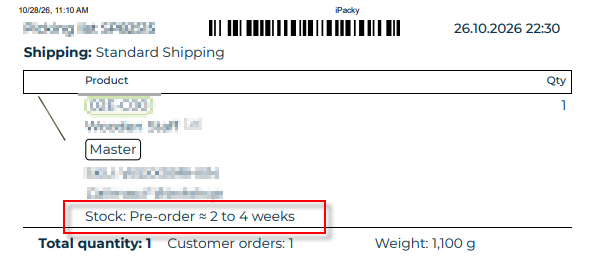
For more details read below.
Also, example of product with custom attributes on scan window:
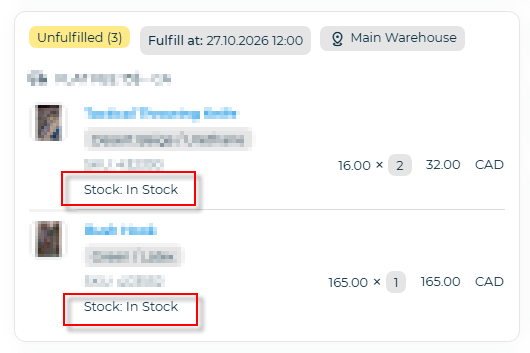
Order lines custom attribute keys control what extra information is shown under each product in iPacky.
For example your order contains:
Product | Custom attribute |
|---|---|
Mug | Engrav=Yes, Color=Black |
Bottle | Engrav=No, Color=Blue |
The keys are case-sensitive. Separate the keys with comma. Like: Color,Engrav
So, if in Order lines custom attribute keys you enter “Color,Engrav“, you will see
Product | What user sees |
|---|---|
Mug | Black, Yes |
Bottle | Blue, No |
For example, if you configure: Color,Engrav , iPacky displays only the values of those attributes.
If you also want to show the attribute name, use the format: Color=Color, Engrav=Engraving
The text after = is displayed as the label, followed by the attribute value.
So, if in Order lines custom attribute keys you enter “Color=Colour,Engrav=Engraving“, you will see
Product | What user sees |
|---|---|
Mug | Colour: Black, Engraving: Yes |
Bottle | Colour: Blue, Engraving: No |
You can also add [[value]] after key name=text to specify that it will only be shown when the value inside the double brackets matches the key value. Example: Engrav=Engraving[[Yes]]
This is useful when you only want to highlight special items.
Product | What user sees |
|---|---|
Mug | Colour: Black, Engraving: Yes |
Bottle | Colour: Blue |
Special options
[[#non-empty#]] after key name=text
Used to specify thatit will only be shown if the value is not empty. Example: Engrav=Engraving[[#non-empty#]].
*
Shows all custom attributes that are available.
This is mainly useful when you’re setting up iPacky and want to identify which attribute keys exist before configuring specific ones.
*[non-empty]
Shows only custom attributes that contain a value.
Empty attributes are ignored, making the display cleaner and reducing unnecessary blank fields.
%20
%20
Represents a space character in a key name.
This is only needed when a custom attribute key contains spaces at the beginning or end of the key name. Since iPacky automatically removes leading and trailing spaces when processing keys, %20 allows you to explicitly reference those spaces when matching the key.
*[-]
This will not show custom attributes that start with _.